Usage Guide

This guide will help you understand how to use the Madonne DOJ tablet interface effectively.

Opening the Tablet

To open the DOJ tablet, use the command configured in your config.lua:

/tablet

By default, this is /tablet, but your server administrator may have changed it.

Note: Only players with assigned police or justice services can access the tablet.

Interface Overview

The tablet interface is divided into two main parts:

Login or Register ?

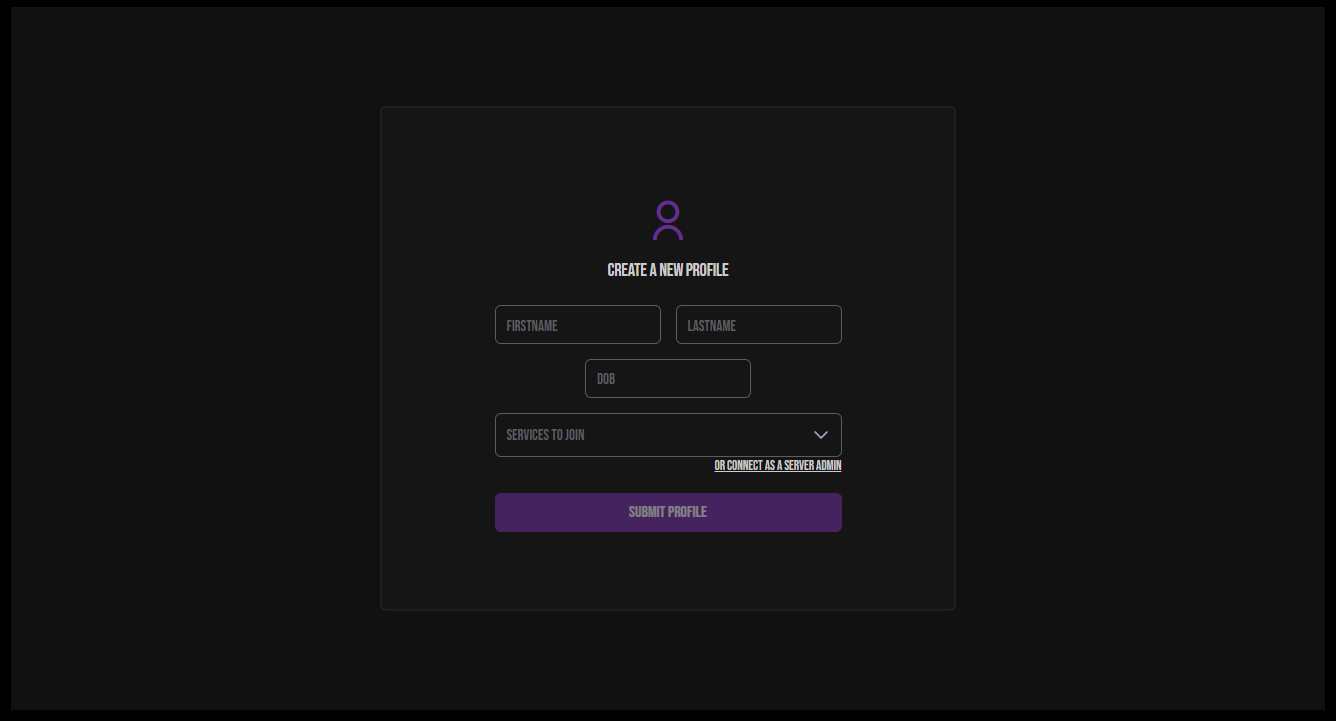
Screenshot of the account creation screen
Account creation screen
The first screen you will encounter is the account creation screen.

  • Enter your role-play information (surname, first name, date of birth) and the department you wish to join.

  • Click on ‘Submit profile’ and a request will be sent to the managers of the requested service.

Administrators can also use the "Connect as a server admin" button to access their view.

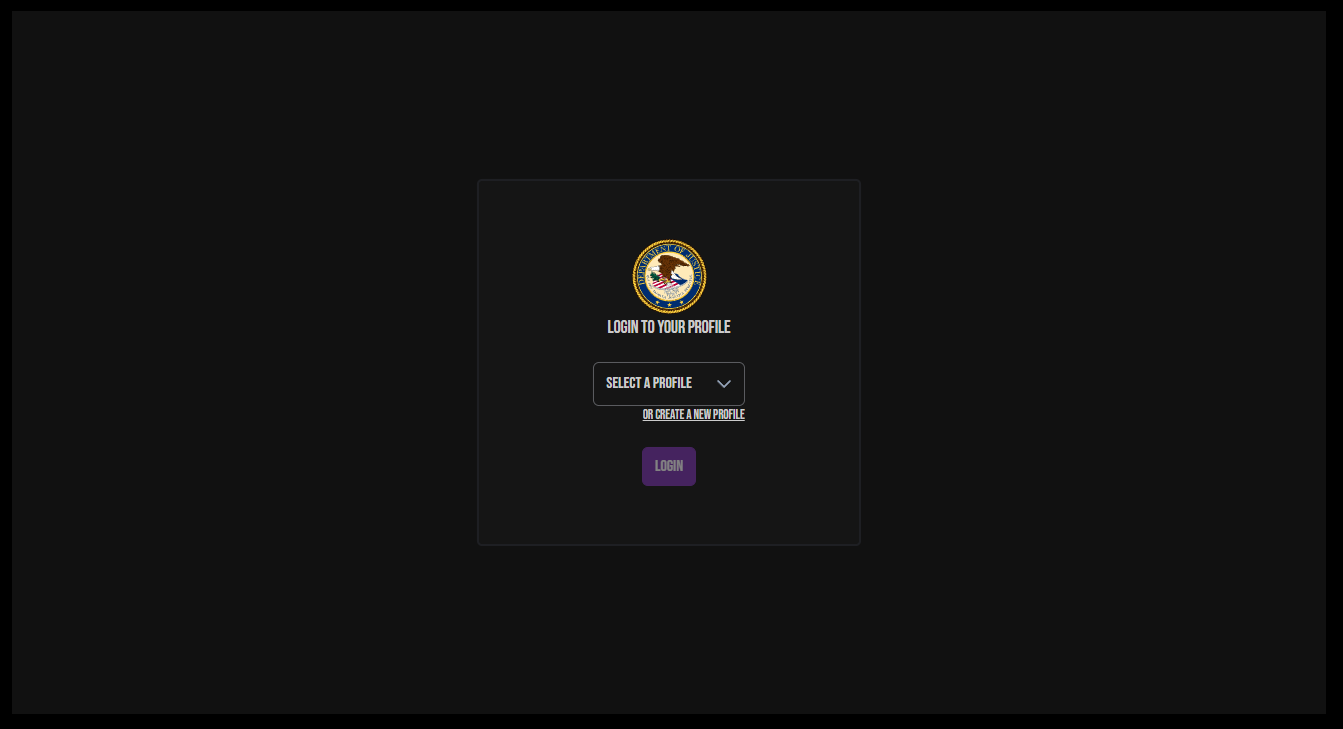
Screenshot of the login screen
Login screen

Once your request has been accepted, you will be able to log in to your profile. Simply select it and click on ‘Login’.

You also have the option to create other profiles (they are all linked to your Discord ID).

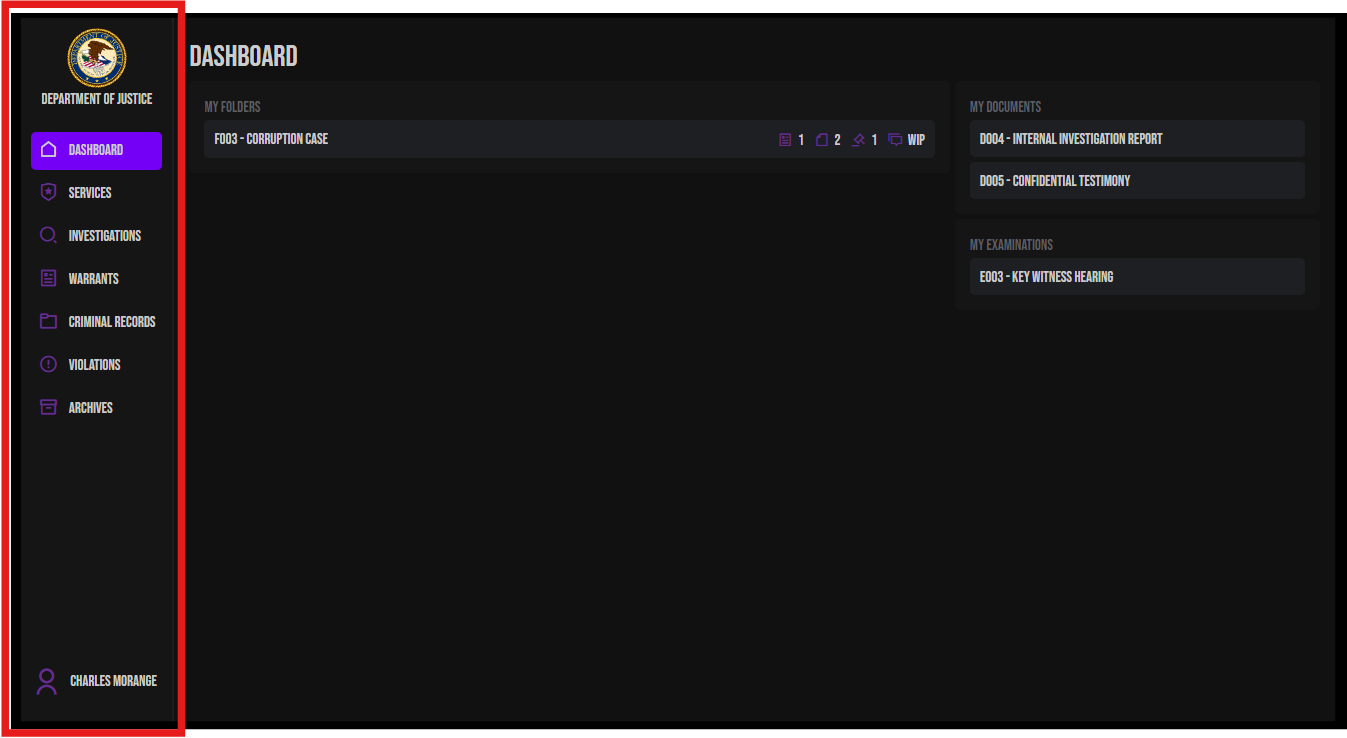
Sidebar screenshot
Sidebar

The sidebar contains navigation icons for all available sections:

  • 📊 Dashboard - Your personal overview

  • ⚙️ Services - Service administration

  • 📁 Investigations - Case management

  • ⚖️ Warrants - Warrant system

  • 👤 Records - Criminal records

  • 🚨 Violations - Offense catalog

  • 🗄️Archives - Archived case viewing

Click on your name to log out.

Main Content Area (Right)

The main area displays the content for the selected section.

Features by Section

📊 Dashboard

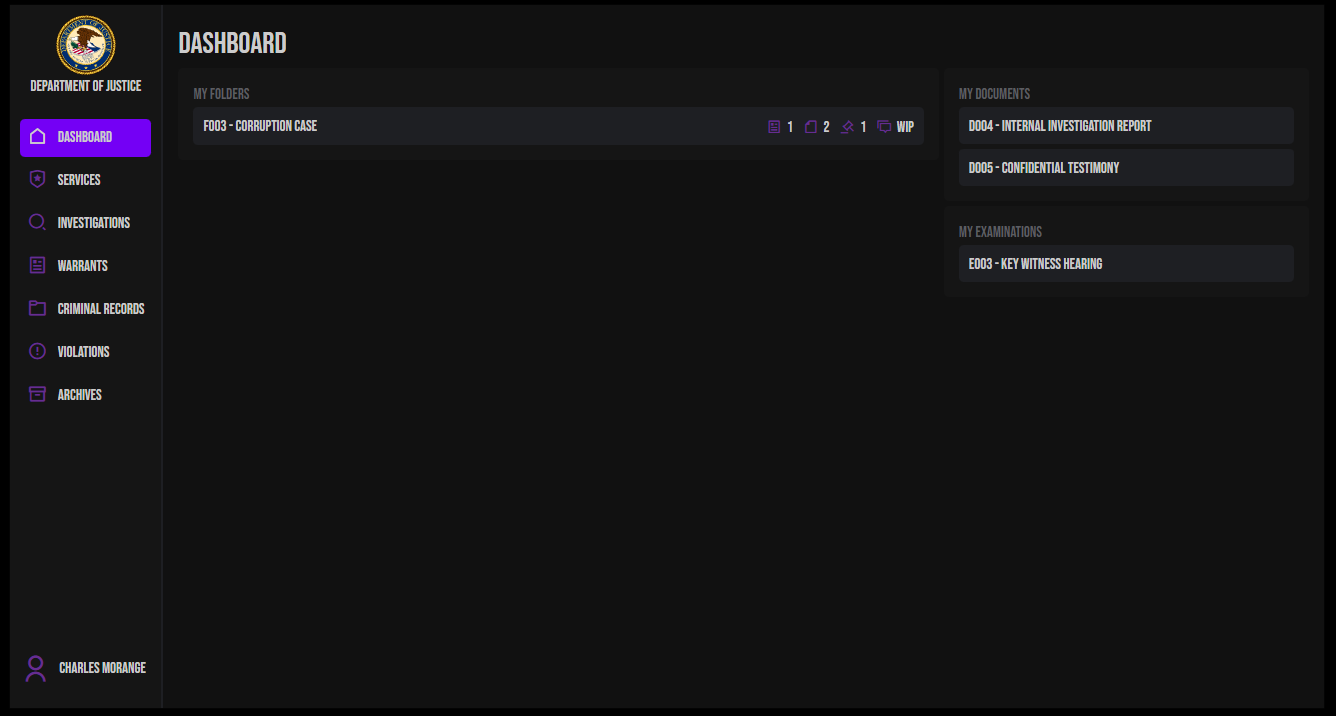
Dashboard screenshot
Dashboard

Your personal dashboard shows:

  • My Investigations - Cases you're assigned to

  • My Documents - Documents you've created

  • My Examinations - Interrogations you've conducted

Quick Actions:

  • Click any item to open it

  • See recent activity at a glance


⚙️ Services

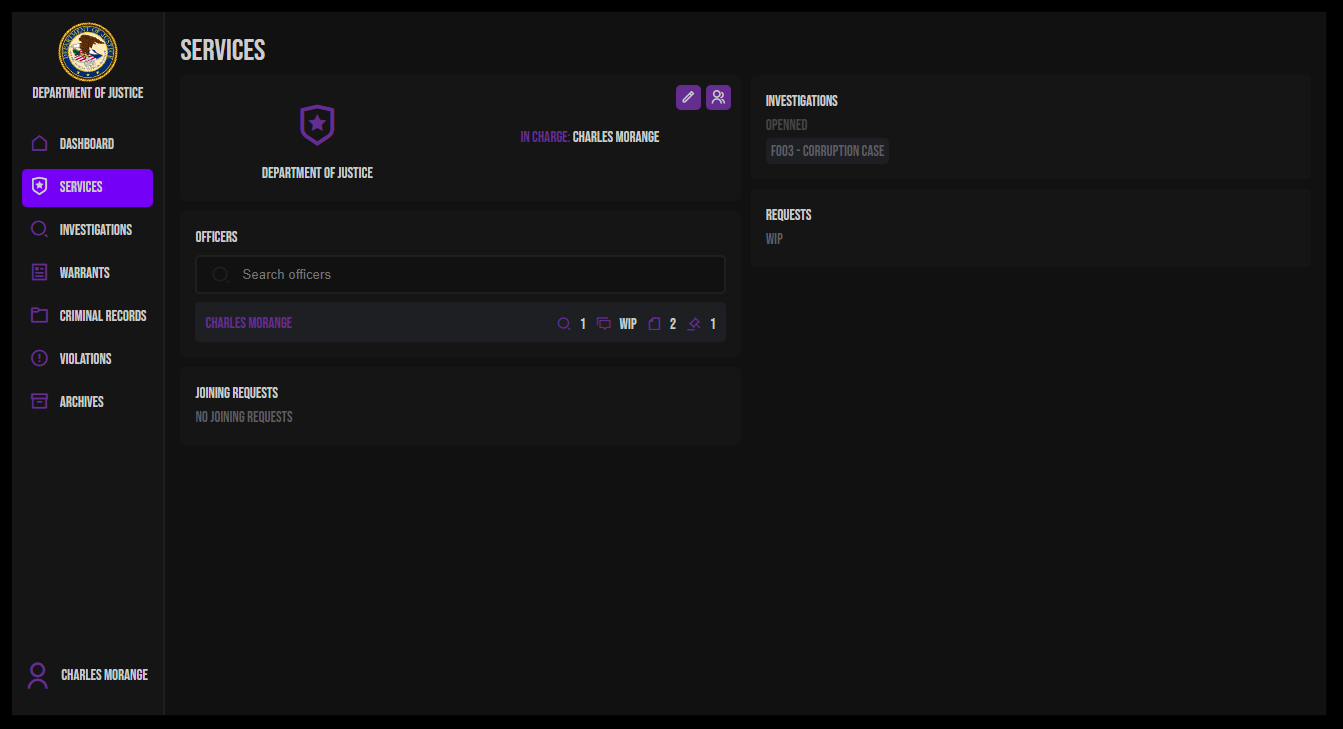
Detailed vue of a service

Manage service members and pending requests (Chiefs only).

What you can do:

  • ✅ View service members

  • ✅ Approve pending members

  • ✅ Remove members from service

  • ✅ Manage service roster

Service Management:

  1. View all current members

  2. See pending join requests

  3. Approve or deny requests

  4. Remove officers from service


📁 Investigations

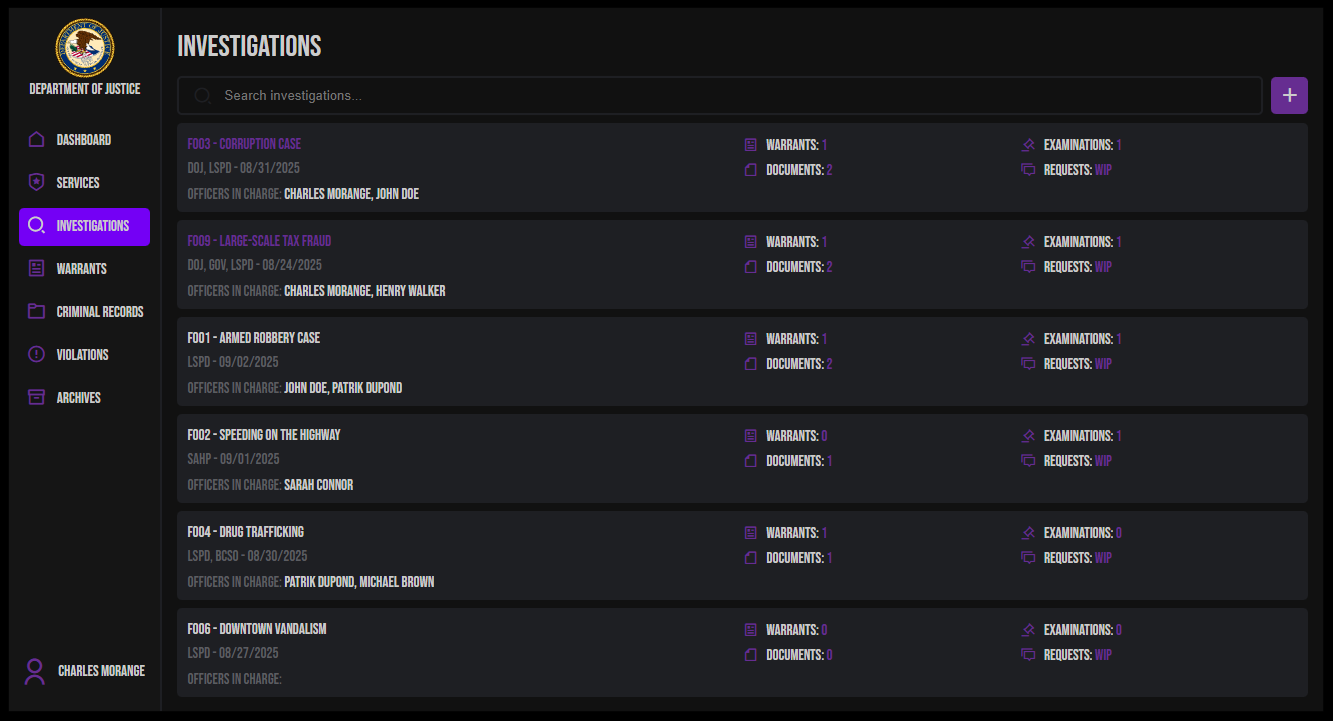
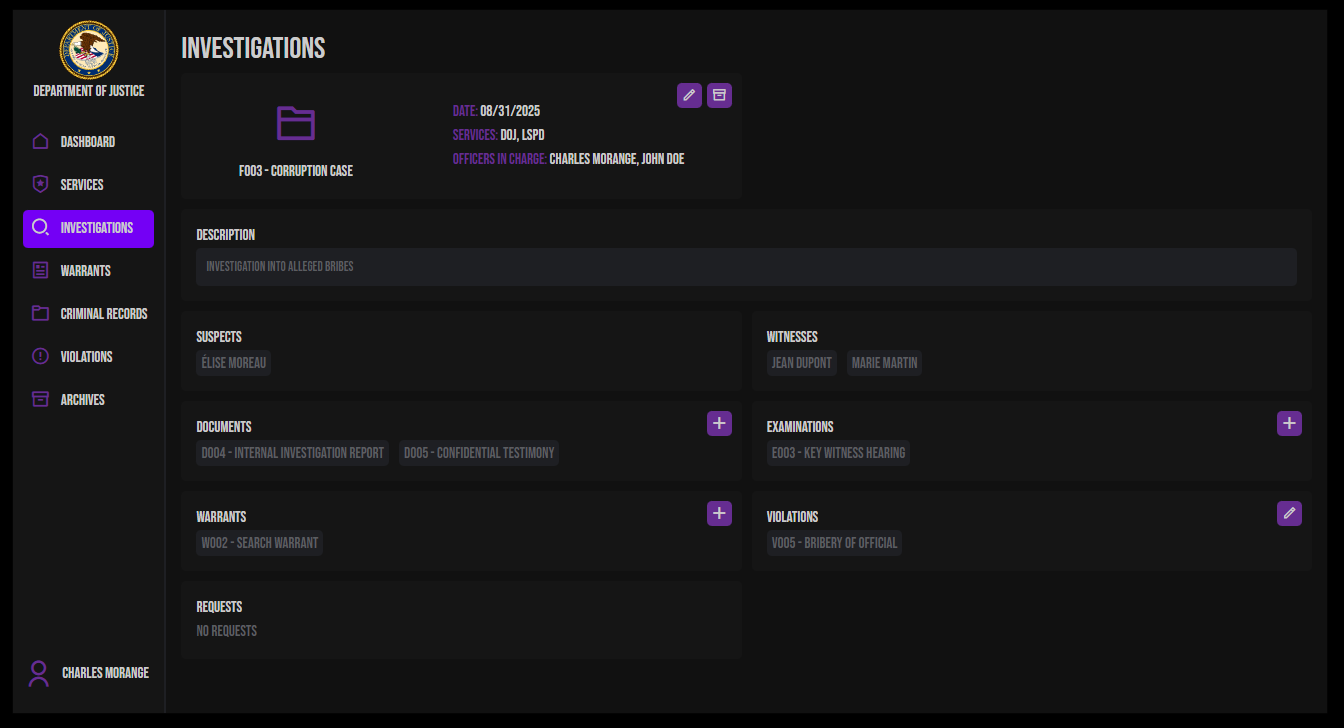
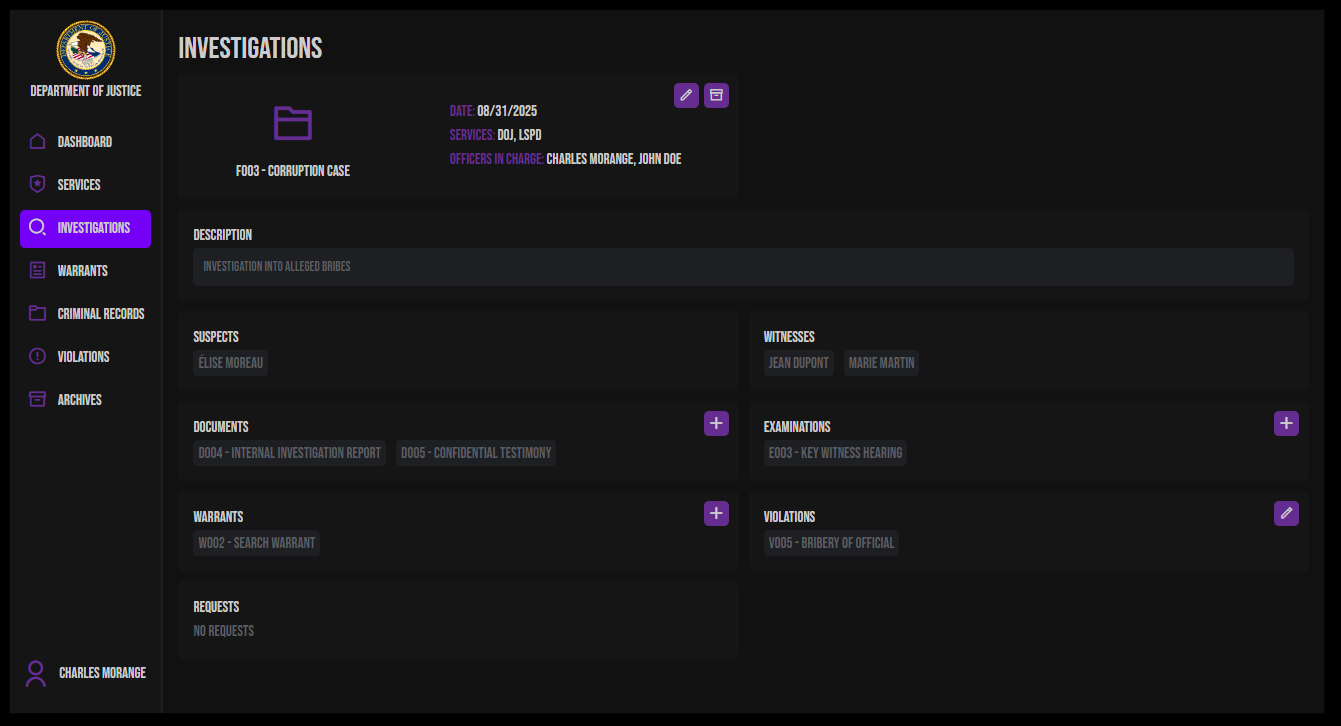
Screenshot of the main view of investigations tab
Investigations main view
Detailed view of an investigation
Manage investigation folders and cases.

What you can do :

  • ✅ Create new investigation folders

  • ✅ View all investigations (if you have access)

  • ✅ Edit investigation details

  • ✅ Assign officers to cases

  • ✅ Assign services to investigations

  • The investigations you are responsible for appear in purple.

  • You only have access to your own investigations or those of your department.

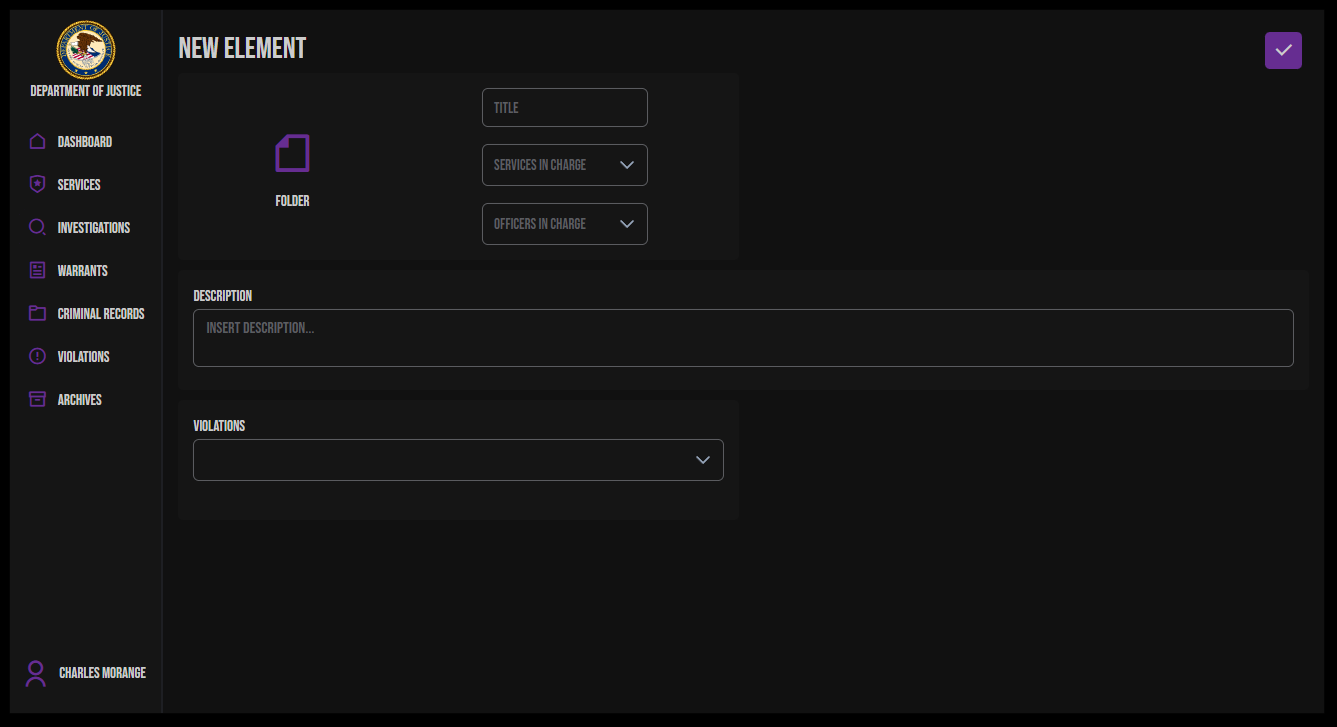
How to create an investigation:

Creating an investigation
  1. Click the "+" button

  2. Enter investigation title

  3. Add description

  4. Assign officers in charge

  5. Select services involved

  6. Click Save


⚖️ Warrants

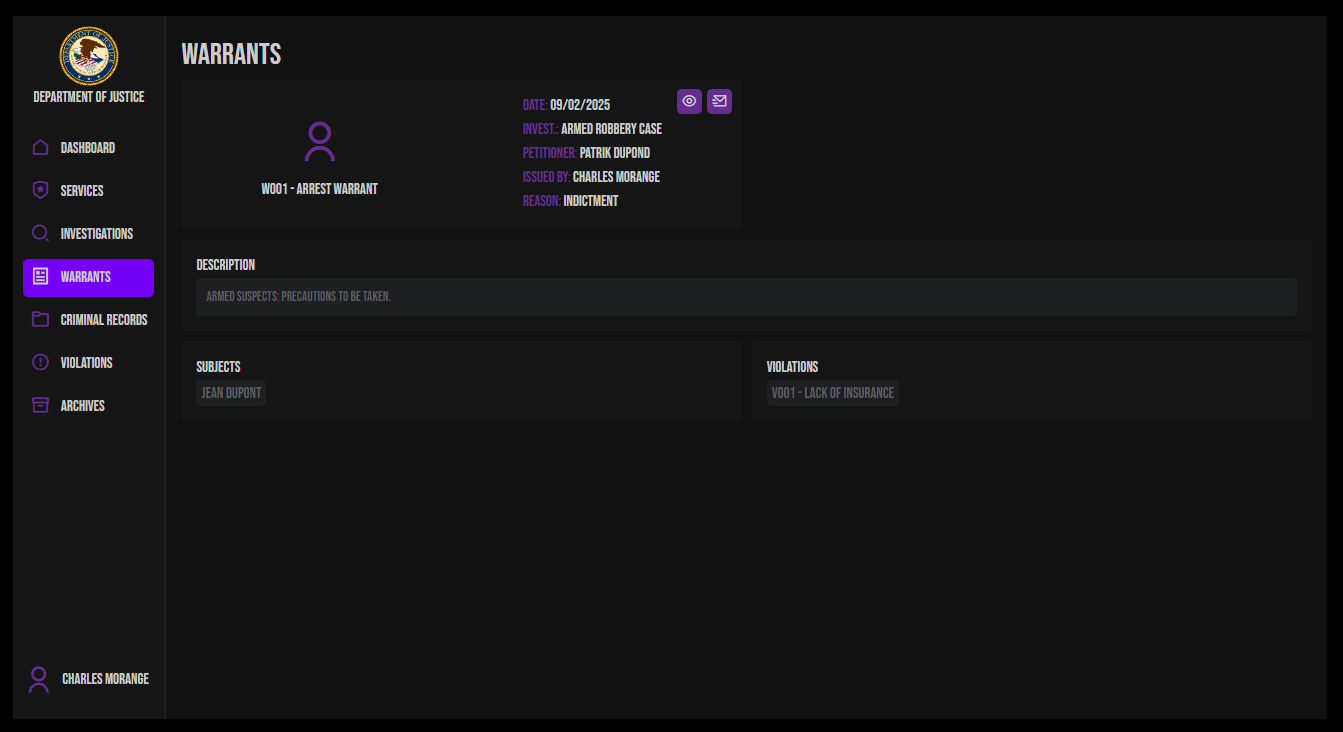
Detailed view of a warrant

Manage arrest warrants and search warrants.

What you can do:

  • ✅ Create warrant requests (police)

  • ✅ View warrants

  • ✅ Edit pending warrants

  • ✅ Sign/Issue warrants (justice only)

  • ✅ Send warrants to Discord

Warrant Types:

  • 🚔 Arrest Warrant - To arrest a suspect

  • 🔍 Search Warrant - To search property

Warrant Workflow:

  1. Police Officer creates warrant request

  2. Fills in suspect information

  3. Adds probable cause

  4. Submits for approval

  5. Judge reviews the warrant

  6. Judge signs and issues if approved

  7. Warrant becomes active

  8. Notification sent to Discord (if configured)

How to create a warrant:

  1. Click the "+" button

  2. Select warrant type (Arrest/Search)

  3. Select suspect from folder

  4. Enter details and probable cause

  5. Submit for approval

How to issue a warrant (Justice only):

  1. Open pending warrant

  2. Review details

  3. Click Issue Warrant

  4. Enter reason/notes

  5. Confirm issuance

  6. Warrant is now active


📄 Documents (only in investigation view)

Detailed view of a document

Create and manage documents related to investigations.

What you can do:

  • ✅ Create new documents

  • ✅ View documents (from your service or investigations you're assigned to)

  • ✅ Edit existing documents

  • ✅ Assign officers to documents

  • ✅ Add suspects and witnesses


🎤 Examinations (only in investigation view)

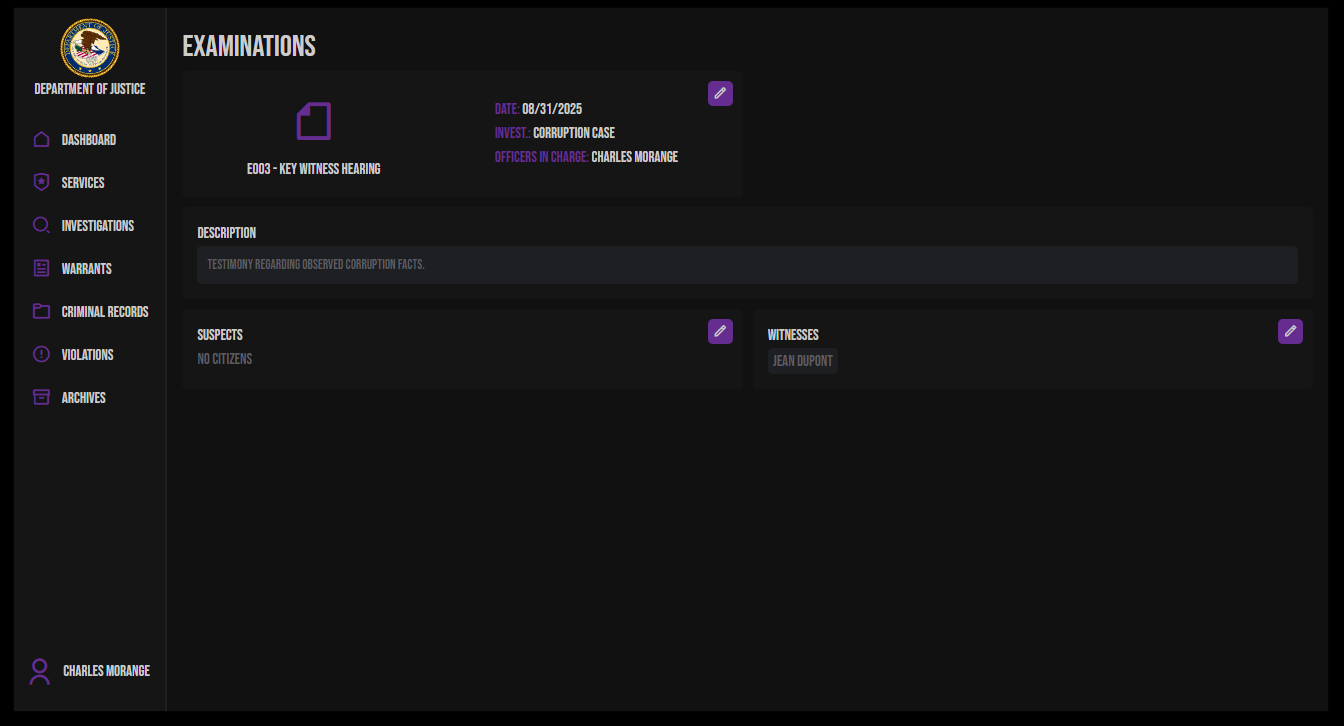
Detailed view of an examination

Record interrogations and witness statements.

What you can do:

  • ✅ Create examination records

  • ✅ Document interrogations

  • ✅ Link to investigation folders

  • ✅ Record suspect/witness statements

  • ✅ Assign conducting officers

How to record an examination:

  1. Click the "+" button

  2. Enter examination title

  3. Select examinee (suspect/witness)

  4. Add interrogation details/transcript

  5. Assign officers present

  6. Click Save


👤 Records

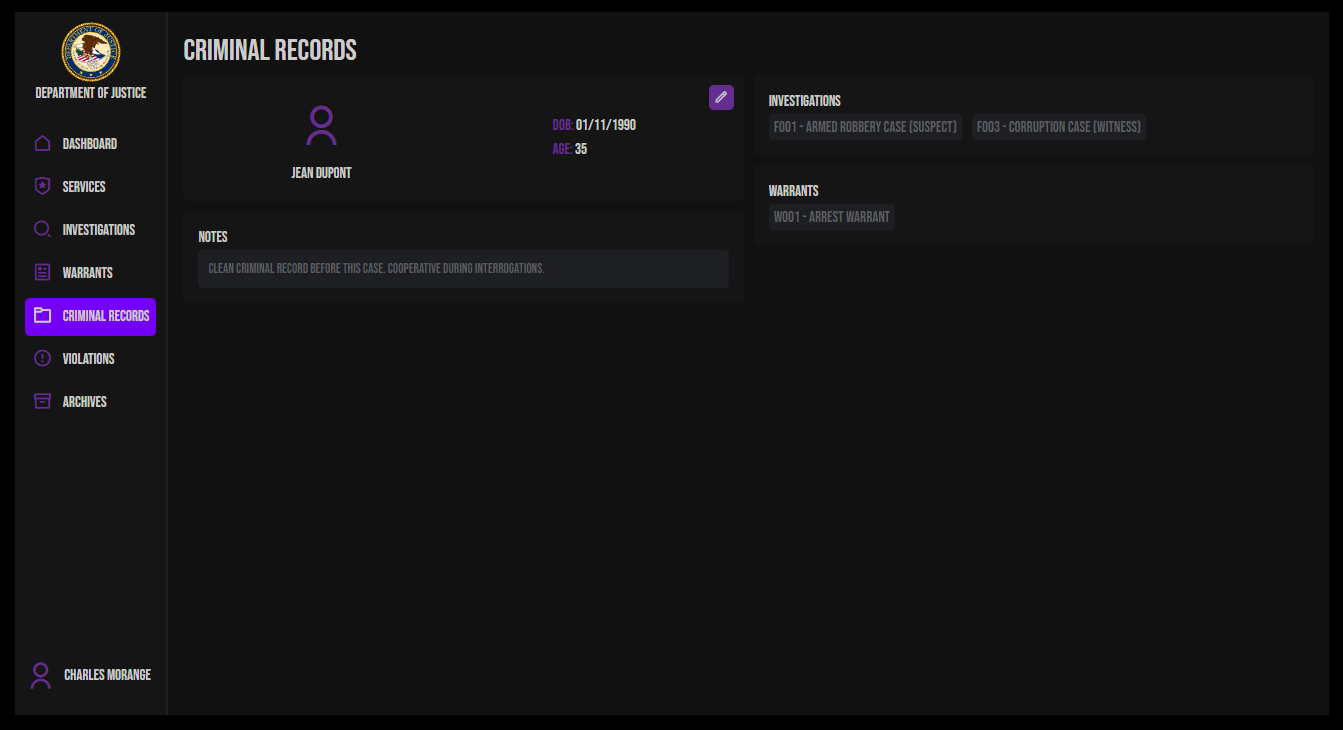
Detailed view of a criminal record

View and manage citizen criminal records.

What you can do:

  • ✅ Search for citizens

  • ✅ View criminal history

  • ✅ See all related investigations

  • ✅ Create new citizen records

  • ✅ Update citizen information

How to search records:

  1. Use the search bar

  2. Enter citizen name or ID

  3. Click on result to view full record

  4. See all investigations, warrants

Record Information Includes:

  • Personal information

  • Investigation history

  • Active warrants


🚨 Violations

Manage the catalog of criminal offenses.

What you can do:

  • ✅ View all violations

  • ✅ Add new violation types

  • ✅ Edit violation details

  • ✅ Set fines and jail times

  • ✅ Categorize offenses

How to add a violation:

  1. Click the "+" button

  2. Enter violation name

  3. Add description

  4. Set fine amount

  5. Set jail time

  6. Assign category

  7. Click Save

Violation Categories:

  • Traffic offenses

  • Violent crimes

  • Property crimes

  • Drug offenses

  • White collar crimes

  • Custom categories


Troubleshooting

Can't see certain sections

Cause: You don't have permission Solution: Contact your supervisor or administrator

Can't create items

Cause: Missing required permissions Solution: Check your role permissions

Items not saving

Cause: Server connection issue Solution: Check console (F8), contact administrator

Tablet won't open

Cause: Not assigned to a service or wrong command Solution: Verify you're employed and using correct command

Permission Quick Reference

To use each section, you need:

Section
Required Permission
Value

Dashboard

(Any permission)

-

Investigations

MANAGE_FOLDERS

1

Documents

MANAGE_DOCUMENTS

2

Warrants (Create)

MANAGE_WARRANTS

4

Warrants (Issue)

ISSUE_WARRANTS

8

Examinations

MANAGE_EXAMINATIONS

16

Requests

MANAGE_REQUESTS

32

Records

MANAGE_RECORDS

64

Services

MANAGE_SERVICES

128

Violations

MANAGE_VIOLATIONS

256

Archive investigations

ARCHIVE_FOLDERS

512

For more on permissions, see:

Getting Help

If you need assistance:

  • 📖 Check this documentation

  • 💬 Ask your supervisor or chief

  • 🎫 Contact server administration

  • 📧 Report bugs to development team

Last updated

Was this helpful?